Downloading and Installing PC-Rail Plus Simulations
Introduction
The software provides for the running of PC-Rail Plus simulations from this screen:
Figure 1
If you already have PC-Rail Plus installed then you can miss Step 1 and run PC-Rail Plus.
(You may, however, wish to update to the latest version of the PC-Rail Plus software.)
To run PC-Rail Plus :
Click or double-click on the desktop icon:
Or: run from the Windows Apps (Programs) menu.
Then carry on to Step 2 below to load indivual simulations.
Step 1: Download and install the PC-Rail Plus software
Go to the Installing/Updating PC-Rail Plus page of the PC-Rail website, click on the 'Download Software' button and run the downloaded PcrPlus.exe installation file.
Proceed from the first screen:
.. to the final screen:
After you click on 'Finish' the installed PC-Rail Plus software will run, showing you the screen as in Figure 1 above.
(If you have installed PC-Rail Plus software for the first time, the Simulation list will be empty)
Step 2: Download a PC-Rail Plus simulation
Download the chosen simulation from the PC-Rail website. Depending on your web browser you may be asked if you wish to Open or Save it. If you are asked, make sure you select 'Save'.
For Step 3 you need to know where this zip file is saved on your computer. Unless you have chosen otherwise it will normally have been put into your Windows 'Downloads' folder.
Step 3: Import and run a downloaded PC-Rail Plus simulation
If not already running, run the PC-Rail Plus software.
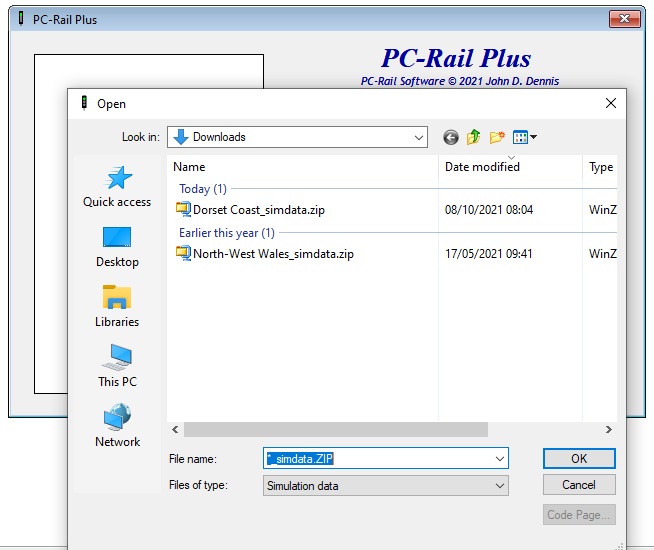
Click on the Import button and you will get a file selection screen, e.g.
You need to navigate to the folder containing the zip file which you downloaded in Step 2, so that it is visible in the selection window.
Highlight the chosen file to select it and then click on 'OK'.
When the Import is complete, you will see the following screen:
Click the 'OK' button, and you will see the imported simulation in the list of simulations, and the 'Run' button is enabled.
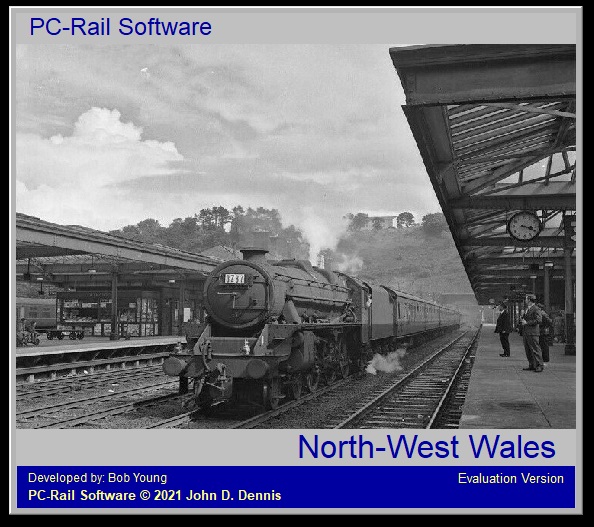
Just click on the 'Run' button and the simulation will start up in a new window:
You can if you wish now close PC-Rail Plus with the 'Exit' button, or keep it open to import and/or run another PC-Rail Plus simulation.